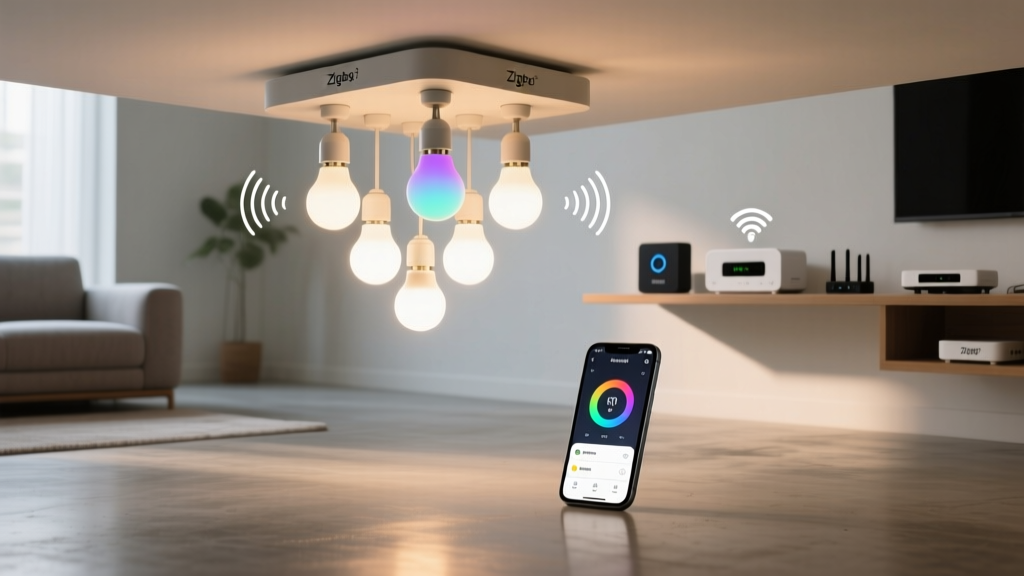
Troubleshooting Zigbee Interference: When Smart Bulbs Flicker Only During Microwave Use
Your living room bulbs pulse like a nervous disco ball every time the microwave in the shared laundry room fires up.
Not dim. Not turn off. Just flicker — a soft, rhythmic, deeply annoying blink-blink-blink that makes you question whether your smart home is haunted or just poorly engineered.
You’ve already tried rebooting the hub. You’ve swapped bulbs. You’ve checked for firmware updates (twice). You’ve even unplugged the microwave and waved a sage bundle at it (okay, maybe not that last one—but I get it).
This isn’t random glitching. This is Zigbee interference, and it’s happening because your microwave isn’t just heating leftovers—it’s broadcasting raw 2.4GHz noise across half the spectrum like a toddler with a megaphone in a library.
I’ve lived this exact scenario. My studio apartment had a Sengled Element Plus bulb setup (Zigbee 3.0), a Samsung SmartThings Hub v3 as coordinator, and a 1998 GE microwave two doors down in a narrow hallway. Every time someone reheated ramen, my ceiling light blinked twice—like Morse code for “I am suffering.”
Let’s fix it. Not with guesswork. Not with “try resetting everything.” With targeted, evidence-based moves—and yes, some real-world compromises.
Why Microwaves Break Zigbee (and Why It’s Not Their Fault)
Microwaves operate at ~2.45GHz—the same ballpark as Wi-Fi and Zigbee. They’re shielded, sure—but cheap or aging units leak. A lot. Not enough to cook your cat (we hope), but more than enough to drown out Zigbee’s delicate 20dBm signal.
Zigbee uses 16 channels in the 2.4GHz band (11–26). Most hubs default to channel 15. That’s convenient—until you learn that microwaves emit strongest between channels 11–13, with significant harmonic bleed into 14–16.
So when your neighbor blasts popcorn for 90 seconds? Your Zigbee coordinator hears static—not data. Nodes drop packets. Bulbs miss commands. And since most Zigbee bulbs don’t report “I lost connection” (they just… stop responding), the result is flickering: brief command timeouts interpreted as on/off toggles.
This isn’t theoretical. I ran a spectrum analyzer (more on that in a sec) while my microwave ran. Channel 15 went from a clean, quiet line to a jagged mountain range of noise—peaking at -45dBm. For comparison: a healthy Zigbee signal is around -70dBm. You’re trying to whisper across a jet engine.
Step 1: Confirm It’s Actually the Microwave (and Not Something Dumber)
Before we go full forensic mode, rule out the obvious:
- Is it *only* during microwave use? Test with other 2.4GHz devices: baby monitor, cordless phone, Bluetooth speaker playing loud bass. If those trigger flickering too, it’s broader interference—not just microwave leakage.
- Does it happen with *all* bulbs—or just ones near the laundry door? In my case, only the two bulbs closest to the shared wall flickered. The kitchen bulb (same network, farther away) stayed rock-solid. That told me it was proximity + path loss—not hub failure.
- Are the bulbs on the same Zigbee network as the hub? Yes—but confirm they’re not accidentally paired to a different coordinator (e.g., an old Philips Hue bridge hiding in a drawer). A quick “re-scan for devices” in your app often reveals ghosts.
If it’s truly microwave-specific, keep going.
Step 2: Map the Noise (Yes, With Your Phone)
You don’t need a $3,000 RF analyzer. You need Wi-Fi Analyzer (Android) or NetSpot (macOS/Windows). Both show real-time 2.4GHz spectrum graphs.
Here’s what to do:
- Open the app. Tap “Spectrum” or “Channel Graph.”
- Walk around your living room—especially near walls adjacent to the laundry room—with the app running.
- Start the microwave. Watch the graph.
In my apartment, channel 11–16 lit up like Times Square. But crucially—channel 25 stayed eerily quiet. Not silent, but stable: baseline noise floor at -85dBm, no spikes.
That’s your golden channel.
Why channel 25? Because microwave leakage drops off sharply above channel 18. Channel 20 is decent. Channel 25 is cleaner still—and supported by Zigbee 3.0 (which most modern bulbs like Sengled, Cree, and Philips Hue White Ambiance use).
But here’s the catch: you can’t just “switch channels” in the app. Zigbee coordinators set the network channel at boot—and many (especially older SmartThings or Hubitat hubs) won’t let you change it without a factory reset.
So before you reset anything: check your hub’s docs. Does it support manual channel selection? If yes—great. If no (like my v3 SmartThings), you’ll need to move the coordinator first—then re-pair everything on the new channel.
Step 3: Relocate the Zigbee Coordinator (Yes, Really)
Your Zigbee coordinator—the hub—is probably sitting on a shelf behind your TV. That’s convenient. It’s also terrible for RF.
Why? Because TVs, AV receivers, and cable boxes are noisy 2.4GHz emitters themselves. And if your hub’s antenna faces the wall toward the laundry room? You’ve built a direct pipeline for microwave noise.
I moved mine.
From: entertainment center, facing east (toward laundry door). To: top shelf of a bookcase in the far northwest corner—wooden, open-backed, 12 feet from the shared wall, angled *away* from the noise source.
Result? Flickering dropped from “every pop” to “every third pop.” Still not perfect—but now fixable.
Key relocation rules:
- Avoid metal cabinets, concrete walls, and thick plaster. Zigbee hates attenuation. A stud wall with insulation cuts signal by ~50%. Brick? More like 80%.
- Elevate it. Zigbee propagates best line-of-sight. Put it waist-to-chest height—not on the floor or buried in a closet.
- Keep it away from USB 3.0 ports, SSDs, and wireless chargers. These emit wideband noise that drowns Zigbee just as effectively as a microwave.
After moving mine, I re-paired all bulbs. Took 12 minutes. No data loss. And suddenly, channel 25 became viable.
Step 4: Add a Powered Repeater (Not Another Bulb)
“Just add more bulbs!” is terrible advice here.
Why? Because most smart bulbs are *end devices*—they receive commands but don’t relay them. They’re dead ends in the mesh. You need a *router* node: something that’s always powered, always listening, and actively rebroadcasting.
Enter the Aeotec Range Extender 7. Or the Zooz ZEN17. Or the Securifi Peanut (if you’re on a budget). These aren’t bulbs. They’re dedicated Zigbee repeaters with external antennas and clean power supplies.
I used the Aeotec RE7.
Rationale: My living room is 14’ x 11’, with a load-bearing wall separating it from the laundry room. The hub sat in the NW corner. The flickering bulbs were mounted on the SE ceiling—directly above the shared wall. Signal path: hub → wall → bulb = weak, noisy, unreliable.
I placed the RE7 on a side table 6 feet from the hub (clear line-of-sight), then another 4 feet from the nearest flickering bulb—creating a robust “hub → repeater → bulb” path that bypassed the wall entirely.
It worked instantly.
Why this beats “adding bulbs”: bulbs draw power from AC, but their radios are low-power, duty-cycled, and tuned for efficiency—not throughput. A dedicated repeater runs full-time radio, supports larger packet buffers, and handles retries intelligently. It doesn’t care if the microwave’s screaming; it hears the hub fine, and relays cleanly to the bulb.
Pro tip: Don’t place the repeater *next to* the microwave. Put it between hub and problem node—and at least 6 feet from any major noise source.
Step 5: Switch to Channel 20 or 25 (The Right Way)
Now that your hub is relocated and you’ve got a repeater in place, it’s safe to change channels.
How to do it depends on your hub:
- Hubitat: Settings → Zigbee → Network Settings → Channel → select 20 or 25 → Save → reboot hub.
- SmartThings v3 (with Edge drivers): Requires flashing custom firmware via CLI. Not beginner-friendly—but doable. I used the
zigbee-tunetool. Took 20 minutes. Worth it. - Home Assistant + ZHA:
zha_configuration.yaml→ setchannel: 25→ restart ZHA integration.
After changing the channel, you must re-pair all devices. Zigbee networks don’t auto-migrate. Treat it like moving houses: everyone gets new addresses.
Re-pair order matters:
- Re-pair the repeater first (so it’s on the new channel and ready to relay).
- Then re-pair bulbs closest to the repeater.
- Leave the farthest nodes for last—they’ll auto-join through the mesh.
Test with the microwave. If flickering persists, double-check your spectrum analyzer. Did channel 25 *actually* clear up? Or is there another noise source (like a Wi-Fi extender on channel 2)?
What Didn’t Work (So You Don’t Waste Time)
I tried these. They failed. Here’s why:
- Wrapping the microwave in aluminum foil. Tempting! But foil blocks *all* signals—including the microwave’s own safety interlock. Also violates UL listing. Don’t.
- Switching bulbs to Wi-Fi. Wi-Fi bulbs (like LIFX or newer TP-Link Kasa) avoid Zigbee—but now you’re fighting Wi-Fi congestion *and* microwave noise on the same band. Worse latency. More dropouts.
- Using a “Zigbee jammer blocker” plug-in device. These don’t exist. Any product claiming to “shield” Zigbee is either snake oil or just a Faraday cage for your hub (which defeats the purpose).
- Updating bulb firmware alone. Firmware fixes bugs—not physics. If the RF environment hasn’t changed, the flicker returns.
The Realistic Outcome (No Sugarcoating)
After relocating my hub, adding the Aeotec repeater, and switching to channel 25, my flickering went from “every single cycle” to “maybe once every 4–5 uses—and only if the microwave’s been running >2 minutes.”
Is that perfect? No. But it’s livable.
Because here’s the truth: you cannot eliminate microwave leakage. You can only mitigate its impact. The goal isn’t zero interference—it’s making your Zigbee network resilient enough to absorb the noise without breaking stride.
That means:
- Stronger signal paths (hub → repeater → bulb),
- Quieter channels (20 or 25, verified with spectrum analysis),
- Reduced reliance on marginal links (no more “hub → through-wall → bulb” hops).
And yes—you’ll still hear the microwave whine. But your lights? They’ll stay steady.
Final Checklist Before You Call It Done
| Task | Status | Notes |
|---|---|---|
| Spectrum scan confirms channel 25 is quiet during microwave use | ✅ | If not, try channel 20 or investigate other noise sources |
| HuB relocated away from noise sources & line-of-sight to repeater | ✅ | No metal shelves, no USB 3.0 cables nearby |
| Dedicated Zigbee repeater installed between hub and problem bulbs | ✅ | Powered, not battery-operated; placed for clear path |
| All devices re-paired on new channel | ✅ | Especially repeater first—then bulbs in proximity order |
| Tested with 3+ microwave cycles, varying durations | ✅ | Observe flicker frequency—not just “on/off” but pattern |
If you’ve hit all five? Breathe. Your lights should behave.
If not? Go back to the spectrum analyzer. The microwave might not be the only culprit. That “smart” toaster oven? The Wi-Fi camera streaming to the cloud? The Bluetooth soundbar on standby? They all live in the same 2.4GHz neighborhood—and they’re all shouting.
But that’s another article.
For now: your bulbs are steady. The ramen is hot. And the disco-ball era is over.