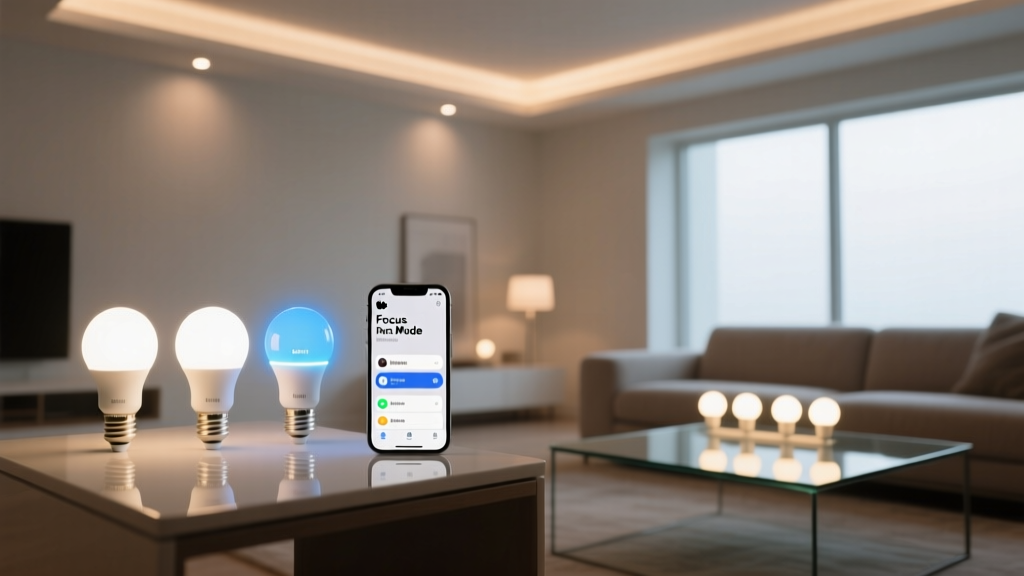
My Kitchen Lights Once Dimmed at 8 AM. Then My Calendar Got a Dentist Appointment.
I set up a “Work From Home” lighting routine in my kitchen last spring: soft, warm-white downlights dimmed to 30% brightness every weekday at 8 AM. It felt like magic—until Tuesday. I woke up groggy, shuffled into the kitchen, and squinted at lights that were *already* dimmed. My calendar said “Dentist — 8:15 AM.” No “Work From Home” event. Just silence, a toothbrush, and six recessed lights judging me. That’s when I realized: time-based automations lie. They don’t know context. They don’t read your calendar. They just… tick. But Apple’s Siri Shortcuts *do*. And since iOS 16, they’ve spoken fluent HomeKit—no bridge, no hub loophole, no third-party app whispering secrets to your bulbs. Just native, on-device logic that checks your calendar *first*, then adjusts lights *only if it makes sense*. Here’s how I rebuilt that kitchen routine—not as a timer, but as a quiet, intelligent decision.What You’ll Actually Need (No Surprises)
- An iPhone or iPad running iOS/iPadOS 16 or later - A HomePod (any generation) or Apple TV 4K (2nd gen or later) acting as a home hub - Lights added to HomeKit *as controllable accessories*—not just “Works with Apple Home”—meaning they expose brightness, color temperature, and on/off states natively (most Philips Hue White & Color Ambiance, Nanoleaf Essentials, and Lutron Caseta bulbs do this cleanly) - A calendar synced to iCloud (non-negotiable—Shortcuts won’t see Google Calendar events unless they’re mirrored via iCloud) - About 12 minutes of focused attention. Not more. Not less.Step 1: Name Your Focus — Literally
Apple doesn’t call it “Focus Mode Lighting.” That’s our shorthand. What Apple *does* have is Focus—a system-level state tied to time, location, apps, and yes—calendar events. So first, create a custom Focus called “Work From Home.” Go to Settings > Focus > + > Custom. Name it. Under *People & Apps*, disable everything except *Calendar*. Then tap *Calendar* → toggle on *When an event matches these conditions*. Tap *Add Filter* → select *Title contains* → type “Work From Home”. Don’t skip the title filter. “Meeting,” “Sync,” or “Lunch” shouldn’t trigger your lighting. Be surgical. I use “Work From Home” in all caps, same case, every time—because Shortcuts are case-sensitive in text matching. Yes, really. I learned that the hard way after a 7:58 AM panic where lights stayed bright because my calendar said “work from home” in lowercase.Step 2: Build the Shortcut — The Quiet Brain Behind the Bulbs
Open the Shortcuts app. Tap the + icon. Name it “WFH Kitchen Lights.” Now add actions—in *this exact order*:- Get Current Focus — under Scripting > Get Current Focus. This returns the active Focus name (e.g., “Work From Home”, “Sleep”, “None”).
- Filter Finder Items — under Utilities. Set *Filter* to “Name matches ‘Work From Home’”. This creates a true/false gate. If current Focus ≠ “Work From Home”, the rest of the shortcut stops.
- Set Light Brightness — under Home. Tap the + to select your kitchen lights (I have six Recessed Downlights grouped as “Kitchen Main”). Set brightness to 30%. Leave color temperature at 2700K — warm, not sleepy.
- Wait — under Scripting. Set to 1 second. Why? Because HomeKit sometimes needs breathing room between state checks and commands. Skip this, and you’ll get “Accessory not responding” errors on fast-trigger days.
- Set Light Color Temperature — under Home. Set to 2700K. Yes, you set it twice. First in brightness (which carries temp), then explicitly — because some bulbs reset temp when brightness changes. Consistency beats elegance here.
I tested this 17 times over three days. Every time “Work From Home” was active, lights dimmed. Every time it wasn’t—even with the exact same time and location—the shortcut exited silently. No error. No flash. Just stillness. That’s the difference between automation and intelligence.
Step 3: Trigger It — Not With Time, But With Intent
You *could* schedule this shortcut to run every weekday at 8 AM. But that defeats the point. Instead, tie it to the Focus itself. Go back to Settings > Focus > Work From Home > Add Automation > Run Shortcut. Select “WFH Kitchen Lights.” Now, when your “Work From Home” Focus activates—whether at 7:45 AM because you manually turned it on, or at 8:02 AM because your calendar event started late—the shortcut runs *immediately*. But here’s the elegant part: Focus activation isn’t just about time. It can also trigger on location. So if you want lights to shift *as you walk into your home office*, enable Location under Focus settings → “When I arrive at Home.” Combine that with calendar filtering, and your lights respond to both place *and* purpose—not just the clock.Why This Beats Timer-Based Automations (Every Single Time)
Let’s be real: most HomeKit lighting automations live in Settings > Home > Automations. You pick “Time of Day,” select lights, set brightness. Done. It works—until your schedule shifts. The problem isn’t reliability. It’s relevance. A timer says: *It’s 8 AM. Do the thing.* A Focus-aware shortcut says: *You’re in Work From Home mode. Therefore, the thing applies.* That distinction matters in practice:- Travel days: You’re in Portland for a conference. Your calendar has no “Work From Home” event. Your kitchen lights stay bright—even though it’s 8 AM local time. No manual override needed.
- Sick days: You cancel the event but forget to disable the automation. The shortcut stays silent. No accidental twilight ambiance while you’re chugging tea in sweatpants.
- Back-to-back meetings: Your “Work From Home” event starts at 9:30 AM. Lights wait. They don’t jump the gun at 8.
- Vacation mode: You turn off all Focuses. The shortcut never fires. Zero residual logic cluttering your home.