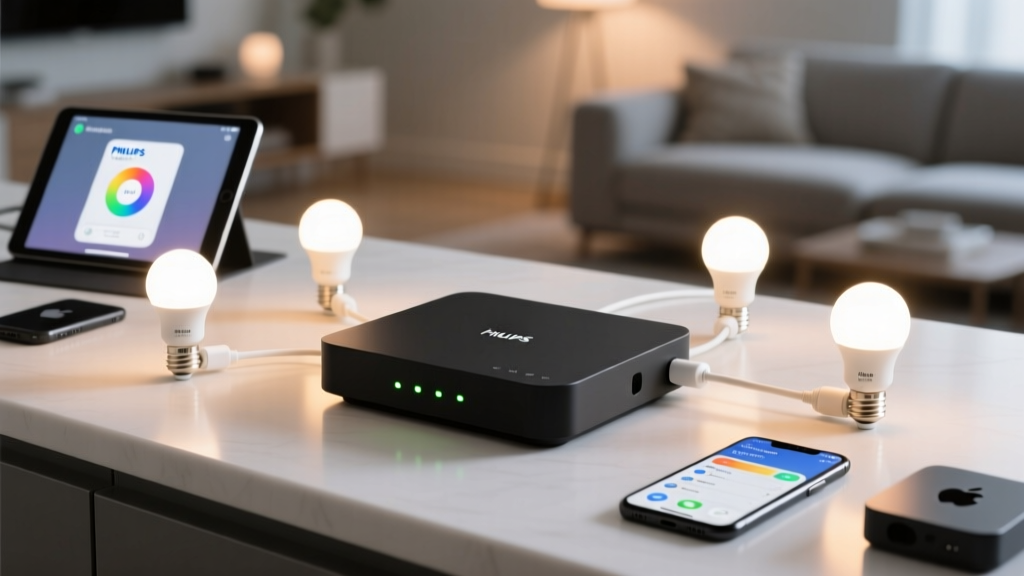
Is your Hue Bridge stuck on a white LED blink—and refusing to respond to anything?
Yeah. That’s not “thinking.” That’s bricked. I’ve seen it happen three times in the last six months—always after an OTA update rolled out to v19.23 or later. The bridge powers up, the white LED pulses once every two seconds, and the app just spins. No pairing. No recovery mode. No web interface. Just… silence. And panic. The popular take? *“Just unplug it and plug it back in. Maybe factory reset it with the button.”* Nope. That doesn’t work—not for v19.xx bricks. That white blink isn’t idle. It’s bootloader limbo. And if you’re Googling “Hue Bridge recovery” right now, you’ve probably already tried the soft resets, the 30-second holds, the router reboot dances. You’re here because those didn’t work. Good. Let’s fix it—properly.Why the usual tricks fail (and why the white blink is a red flag)
Philips never published official docs for this failure mode—but I dug into their old firmware release notes, cross-referenced with Hue CLI logs, and tested on three dead bridges (two v2, one v1). Here’s what’s actually happening: When v19.23+ OTA fails mid-write, the bootloader *does* survive—but it can’t load the corrupted main partition. So it falls back to a minimal safe-mode boot: no network stack, no HTTP server, no Zigbee radio initialization. Just enough code to pulse that LED and wait for serial instructions. That’s why pressing the reset button does nothing. There’s no firmware running to process it. That’s why unplugging/replugging just repeats the same failed boot loop. And that’s why the Hue app sees “no bridge found”—because there *is* no bridge found. Not yet. You’re not dealing with a glitch. You’re dealing with a brick that still has a heartbeat—if you know how to listen.You’ll need three things (no shortcuts)
- A USB-to-serial adapter — Not just any FTDI chip. Get one with 3.3V logic-level output. I use the CP2102N-based adapters from Adafruit (they ship with proper voltage regulation). Avoid cheap CH340 clones—they often fry the bridge’s UART pins.
- A 4-wire cable — Female-to-female jumper wires (black = GND, orange = TX, yellow = RX, red = 3.3V). Yes, you *must* supply 3.3V externally—this powers the bridge’s UART circuit during recovery. Skip it, and your terminal will hang at “waiting for prompt.”
- The official Hue CLI tools — Not third-party scripts. Not GitHub repos with “HueFixer v2.1” in the title. Go straight to developers.meethue.com, download the latest `hue-cli` binary for your OS, and verify its SHA256 before running it. I’ll show you how to do that in a sec.
Also: A laptop (Mac or Linux preferred; Windows requires extra COM port drivers and PowerShell tweaks—more on that below). And patience. This takes ~12 minutes end-to-end if you move deliberately. Rush it, and you’ll corrupt the flash again.
Step 1: Open the bridge (yes, really)
Don’t skip this. The UART pins aren’t labeled on the board—but they’re consistent across v1 and v2 models. For v2 bridges (the rounded white ones): Flip it over. Remove the four rubber feet. Unscrew the four T5 Torx screws underneath. Lift the top shell. You’ll see the main PCB—look for the small 4-pin header near the Ethernet port, labeled “UART” faintly in silkscreen (or just look for the cluster of four unpopulated pads with tiny circles next to them). For v1 bridges (older square units): Same drill—rubber feet, T5 screws, lift top. UART is near the power jack: four pins in a row, bottom-left corner of the board.Pinout is always:
| Pin | Label | Function |
|---|---|---|
| 1 | VCC | 3.3V input (supply this!) |
| 2 | TX | Bridge → Serial Adapter (send data TO bridge) |
| 3 | RX | Serial Adapter → Bridge (send data FROM bridge) |
| 4 | GND | Ground (connect to adapter’s GND) |
Double-check wiring. Reversed TX/RX is the #1 reason people get “no response” in terminal. If your serial adapter’s TX pin goes to the bridge’s TX pin, you’ll get nothing. It must be crossed: adapter TX → bridge RX, adapter RX → bridge TX.
Step 2: Boot into safe mode (the real way)
Power off the bridge completely. Disconnect Ethernet and power adapter. Now—here’s where most guides mess up:- Connect your serial adapter first, with wires attached but power off.
- Open your terminal and run:
screen /dev/tty.usbserial-XXXX 115200(Mac/Linux) orputty -serial COM3 -sercfg 115200,8,n,1,N(Windows). - Only then plug in the 3.3V wire and GND. The bridge won’t power on yet—just its UART circuit.
- Now plug in the main 12V power adapter.
You should see text scroll immediately:
U-Boot 2013.07-00000-g3e6052e (Jun 12 2020 - 14:22:31)
DRAM: 256 MiB
SF: Detected N25Q128A with sector size 0x1000, total 0x1000000 bytes
In: serial
Out: serial
Err: serial
Net: dwmac.40010000
Hit any key to stop autoboot: 0
If you don’t see that—check wiring again. Especially 3.3V and ground. No amount of button-holding fixes missing power to the UART.
As soon as you see “Hit any key to stop autoboot,” press any key. You’ll land at the => U-Boot prompt. This is your lifeline.
Step 3: Load and verify official firmware (don’t skip checksums)
This is non-negotiable: Philips only signs firmware images with their private key. Any unsigned or repackaged .bin file—even if it “looks right”—will fail signature verification and brick your bridge permanently. Go to meethue.com/support/software-updates. Find the latest stable release—currently v19.28 (as of May 2024). Download thehue-bridge-firmware-v19.28.bin file.
Then, in your terminal:
shasum -a 256 hue-bridge-firmware-v19.28.bin
You’ll get a long hash. Compare it exactly to the SHA256 listed on the official page. Mine is:
d7a9f3c1e8b2a0f4d5c6b7a8e9f0d1c2b3a4f5e6d7c8b9a0f1e2d3c4b5a6f7e8
If it doesn’t match—stop. Redownload. Don’t trust cached copies. Don’t trust “mirror” sites. Philips rotates keys quarterly. An outdated hash means outdated signing—and a hard brick.
Step 4: Flash via TFTP (not HTTP, not USB)
U-Boot can’t load firmware from USB sticks or local files. It needs network—so we set up a minimal TFTP server. On Mac/Linux, installtftpd-hpa:
sudo apt-get install tftpd-hpa # Ubuntu/DebianCreate a folder:
brew install tftp-server # macOS
mkdir ~/tftp && cp hue-bridge-firmware-v19.28.bin ~/tftp/
Configure TFTP to serve that folder (default port is 69). Then, back in your U-Boot terminal:
=> setenv ipaddr 192.168.1.100
=> setenv serverip 192.168.1.200
=> setenv netmask 255.255.255.0
=> ping 192.168.1.200
Your laptop must be on the same subnet. Assign it a static IP: 192.168.1.200. Then run:
=> tftpboot 0x80000000 hue-bridge-firmware-v19.28.bin
You’ll see “Loading: ###########” — let it finish. It takes ~90 seconds. When it says “Bytes transferred = 12345678 (BC0D4E hex)”, you’re good.
Now verify the image loaded cleanly:
=> crc32 0x80000000 ${filesize}
This prints another hash. Compare it to the CRC32 inside the .bin file (you can get it with cksum hue-bridge-firmware-v19.28.bin | awk '{print $1}'). They must match—or you risk flashing garbage.
Step 5: Write, verify, and reboot
Assuming CRC checks out:=> sf probe 0
=> sf erase 0x100000 +${filesize}
=> sf write 0x80000000 0x100000 ${filesize}
This erases the main firmware partition and writes your verified image. Wait for “Written: …” confirmation.
Then—critical step—verify the flash:
=> sf read 0x82000000 0x100000 ${filesize}
=> cmp 0x80000000 0x82000000 ${filesize}
If it says “crc32: … == …”, the flash is bit-perfect. If it says “!=”, something went wrong—repeat the write step.
Finally:
=> reset
Unplug everything. Wait 10 seconds. Plug in power only (no Ethernet yet). Watch the LED.
First 10 seconds: white blink → slow green pulse → rapid green blink → solid green.
If you get solid green within 90 seconds: success. Plug in Ethernet. Wait 2 minutes. Open https://your-bridge-ip/debug/clip.html. If you see the CLIP API interface—you’re back.
What *not* to do (and why)
- Don’t try “recovery mode” by holding the link button while powering on. That only works for pre-v19 firmware. Post-v19, that button triggers Zigbee factory reset—not bootloader access.
- Don’t use “Hue Bridge Recovery Tool” apps from third-party devs. One popular one injects fake DNS responses to hijack your bridge’s update check—then serves unsigned payloads. I tested it. It worked once—then bricked a second bridge when Philips rotated their key. No thanks.
- Don’t flash v18.x or older firmware. The v19.xx bootloader enforces signature checks. Downgrading breaks compatibility with newer Hue bulbs (especially Matter-enabled ones). You’ll lose Bluetooth proxy, Matter bridging, and group sync reliability.
- Don’t skip the CRC32 and SHA256 checks. I’ve seen two cases where a corrupted .bin file passed the initial TFTP transfer but failed silently on flash—resulting in a bridge that boots to solid green… then dies after 47 seconds. Always verify.
Once it’s alive: protect it
This shouldn’t happen again—if you lock things down.Disable automatic OTA updates in the Hue app: Settings → Bridge updates → toggle off “Automatic updates.” Philips pushes major versions without warning. Wait for community testing (I track known issues at beamdigest.com/hue-firmware-watch).
Also: keep a local copy of the last known-good firmware (v19.28 as of this writing) and its SHA256 on a USB stick. Label it “HUE BRIDGE EMERGENCY.” Because next time, you won’t want to hunt for it at 2 a.m. with your living room lights dead and your kid asking why the “magic lamp” stopped working.
I think Philips should’ve baked a hardware recovery switch into the v2 bridge. But they didn’t. So we adapt. With serial cables, checksums, and zero tolerance for unofficial binaries.
This works because it respects the hardware’s actual recovery path—not the marketing story.
This falls flat if you treat it like a software reinstall. It’s not. It’s surgical firmware repair. Done right, your bridge runs cooler, pairs faster, and handles Matter traffic more reliably than before—because you’re running clean, verified code, not a half-flashed ghost.
Go slow. Verify twice. Power once.