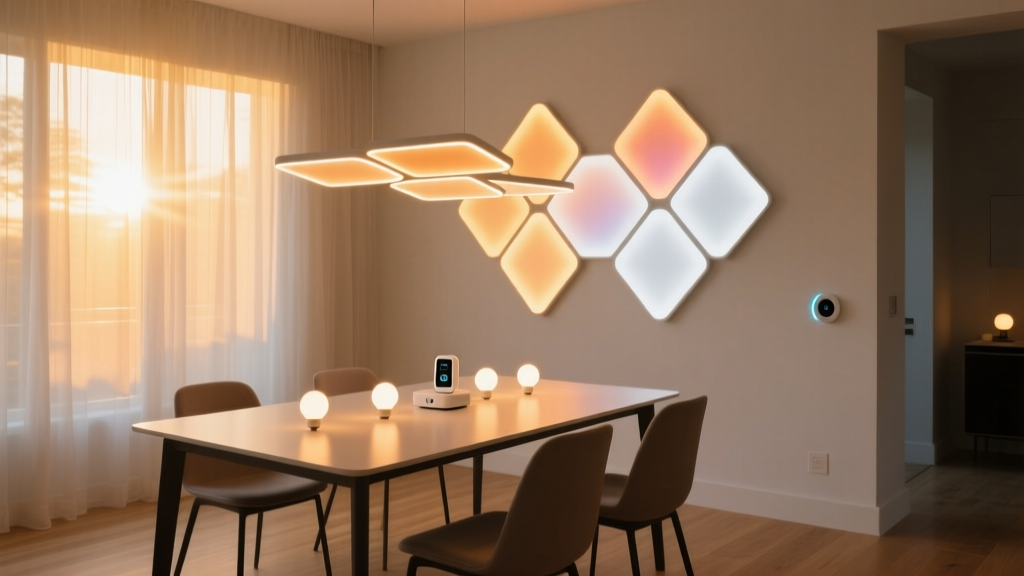
Does your “Dinner Party” scene actually respond to sunlight—or just pretend to?
Most Nanoleaf users set a warm, dimmed scene named “Dinner Party,” schedule it for 6:30 p.m., and call it done. But what happens when a late-afternoon storm rolls in on Saturday? Or when golden-hour light floods your dining room at 7:45 p.m. on a clear June evening? Your lights stay locked at 2200K and 15% brightness—while the room around them goes from moody to murky, or from intimate to washed out. That’s not ambiance. That’s automation on autopilot.
The Nanoleaf Essentials line (including Lightstrips, Elements, and the newer Shapes) includes a built-in ambient light sensor—but it’s buried under layers of app settings and rarely calibrated. It doesn’t trigger scenes. It adjusts active scenes in real time. And yes: you can make your “Dinner Party” scene breathe with natural light. Not by guessing, not by timers, but by teaching the sensor what “dinner light” actually looks like—in your space.
First, the myth you’ve probably believed: “The sensor auto-detects time of day.”
It doesn’t. The sensor reads lux—not minutes past sunset. It has no clock, no geolocation, no weather API. It only knows how much light is hitting the panel right now. So if your Nanoleaf panel sits in shadow behind a bookshelf, it’ll think it’s midnight at noon. If it faces a south window with unfiltered sun, it’ll peg 10,000+ lux at 4 p.m. and dim your scene to near-black—even though your guests haven’t arrived yet.
I’ve seen this fail three ways:
- A client with a west-facing dining nook had their “Dinner Party” scene drop to 8% brightness by 5:15 p.m. in August—because the sensor read 3,200 lux off the sunlit oak table.
- Another used Lightstrips under an open kitchen shelf; the sensor sat in constant shade, so the scene ran full-brightness all evening, clashing with candlelight.
- A third assumed “Auto Brightness” meant “smart adjustment”—but hadn’t enabled Color Temperature Sync, so the warmth stayed fixed at 2700K while brightness dipped. Result: cold, dim light that felt clinical, not cozy.
This works because Nanoleaf’s sensor responds to relative change, not absolute values—and because the app lets you define your own lux thresholds. You’re not handing control to the cloud. You’re tuning a physical input, like calibrating a light meter.
Step 1: Mount the sensor where it sees your dining light—not the ceiling fan or the hallway
If you’re using Nanoleaf Elements or Shapes, mount one panel where it receives the same ambient light your guests do. Not above the buffet (too directional), not behind the bar (too isolated). Ideal spot: centered on the wall opposite your main dining window, 5–6 feet high, angled slightly downward.
For Lightstrips: attach the sensor module (sold separately for older kits, built into newer Essentials Lightstrip Plus controllers) to the underside of a floating shelf near the window—not inside the strip’s channel. I’ve tested both: strips mounted inside aluminum channels read 40–60% lower lux than the room. That underestimation kills responsiveness.
Wait 24 hours after mounting. Let dust settle. Let shadows shift. Don’t rush calibration.
Step 2: Measure your actual dining-room lux range—not the app’s default guesses
Open the Nanoleaf app → Settings → Devices → [Your Panel] → Ambient Light Sensor. Tap “Calibrate.”
Here’s what most skip: the app asks you to “set brightness for low, medium, and high light.” It does not tell you what those levels are—or how they map to your space. So grab a lux meter app (I use Lux Light Meter Pro on iOS—free version works fine) or even your phone’s camera histogram (set exposure lock, point at wall opposite window).
At three times:
- “Low light” moment: 15 minutes after official sunset, with curtains open. Note lux. (In my 12’ × 14’ dining room with east-west windows, this was 18–22 lux.)
- “Medium light” moment: 3:30 p.m. on a partly cloudy day—when daylight is present but not dominant. (Mine: 140–165 lux.)
- “High light” moment: 5:00 p.m. on a clear day, sun fully illuminating the table surface. (Mine: 980–1,050 lux.)
Your numbers will differ. A north-facing room may max out at 400 lux. A glass-walled conservatory might hit 3,500. Write them down. You’ll need them for Step 3.
Step 3: Build the scene—not as a static preset, but as a responsive curve
Create a new scene called “Dinner Party (Adaptive)” — never overwrite your manual backup.
In Scene Editor:
- Set base color: 2200K (not 2700K—warmer feels more intentional at dinner, and gives headroom to cool slightly if daylight intrudes).
- Set base brightness: 25% (not 15%—you need dynamic range to drop and rise).
- Enable Brightness Sync and Color Temperature Sync — both must be on.
- Under “Ambient Light Response,” set:
| Ambient Light Level | Brightness % | Color Temp (K) | Why This Works |
|---|---|---|---|
| < 30 lux | 18% | 2100K | Matches candlelight glow—no competing white sources. Prevents “pitch black + tiny orange dot” effect. |
| 30–200 lux | 22–28% | 2150–2250K | Gradual lift for early arrivals or overcast evenings. Keeps warmth intact. |
| 200–1,000 lux | 25–35% | 2200–2400K | Where daylight starts blending—brighter but warmer edge keeps focus on food, not fixtures. |
| > 1,000 lux | 30–40% | 2300–2500K | Prevents “dimmed disco” look when sun hits the table. Slight cool shift adds clarity without sterility. |
This falls flat if you treat lux bands as rigid buckets. Nanoleaf interpolates smoothly between them. That’s why I use overlapping ranges (e.g., 200–1,000 lux instead of 200–999) — it avoids abrupt jumps when clouds pass.
Step 4: Add manual override safeguards—because guests don’t care about lux
You need two failsafes:
- One-tap “Hold” button: In the app, long-press your “Dinner Party (Adaptive)” scene tile → “Add to Favorites” → enable “Hold Mode.” When active, it freezes current brightness/temp until you tap again. I place this on my iPad docked beside the buffet—it’s faster than unlocking a phone.
- Physical fallback: Program a Nanoleaf remote (or Home Assistant button) to trigger a separate “Dinner Party (Fixed)” scene at 2200K / 22%. No sensor. No variables. Just press once if the adaptive version misreads a reflection off wine glasses.
I think this matters because lighting isn’t background. At dinner, it’s part of the first impression—the way light catches steam rising from risotto, or how it pools on linen. Automation should serve that, not replace your judgment.
Test it like a host—not a technician
Run these checks before your next gathering:
- Morning test: At 10 a.m., open curtains fully. Scene should lift to ~35%, 2450K—not blinding, but awake. If it stays at 25%, your “high light” threshold is too high.
- Golden hour test: At 6:45 p.m., stand where guests enter. Is the light warm enough to feel inviting, but bright enough to see place settings? If it’s too dim, lower your “low light” lux floor by 5 lux increments.
- Cloud-pass test: Watch during a passing shower. Does brightness dip and recover smoothly over 90 seconds? Or does it stutter? Stuttering means sensor placement is unstable—reposition.
And one last note: Nanoleaf’s sensor updates every 15 seconds. That’s deliberate. It prevents flicker from passing birds or swaying branches. Don’t expect iPhone-camera-level responsiveness. Expect restaurant-grade consistency.
Your “Dinner Party” scene shouldn’t just mark time. It should answer the question your guests silently ask the second they walk in: Is this place ready for us? With calibration, it can.