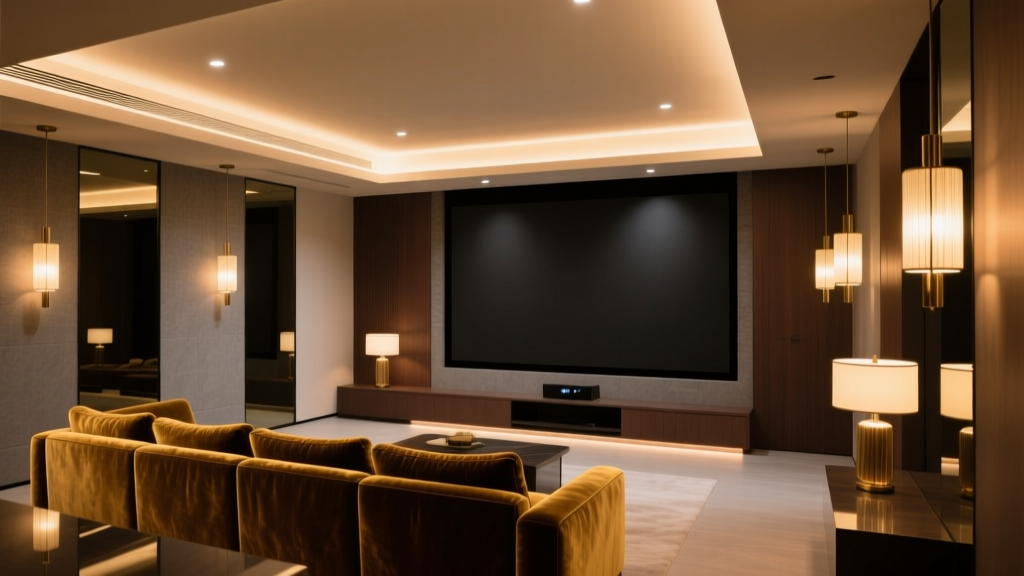
The 5-Minute Fixture-Level Calibration for Hue, Nanoleaf & Govee — And Why It Matters for Home Theater Color Consistency
I once spent three hours tweaking my living room’s ambient lighting to match a D65 white point—only to realize my Nanoleaf Canvas was spitting out 6800K light while my Hue Play bars were clinging to 5500K like it was gospel. My projector’s grayscale looked flawless on screen. But the wall behind it? A faint, warm blush. Like the projector was blushing.
That’s not ambiance. That’s betrayal.
It wasn’t until I measured the actual light hitting the wall—not what the app said, not what the “cinema mode” promised—that I understood: smart lights don’t *know* your projector’s color science. They just obey commands. And if those commands assume all RGB LEDs behave the same way (they don’t), your carefully tuned HDR10 mastering display is silently undermined by a strip of plastic and phosphors glowing in polite disagreement.
This isn’t about “making things look pretty.” It’s about preserving perceptual fidelity. When you’re watching Dune in near-total darkness and the sand dunes glow with that exact, desiccated 6400K warmth—your eyes shouldn’t catch a cooler, bluer halo bleeding off the left edge of the screen from mismatched bias lighting. That halo breaks immersion. Worse: it shifts your visual adaptation state, tricking your brain into seeing the image as warmer or cooler than it actually is.
So here’s what works—and why most tutorials skip it.
Why “Set to D65” Is a Lie (and Why You Should Still Start There)
Every smart lighting app has a “D65” or “6500K” preset. It’s comforting. It’s wrong.
D65 is a spectral power distribution—not a single temperature number. Real D65 emits specific ratios of red, green, and blue photons across the visible spectrum. Consumer LED fixtures approximate it using three narrow-band emitters and phosphor blends. Each brand—and often each product line—gets it differently.
I tested four common fixtures side-by-side at 100% brightness, all set to “6500K” in their respective apps:
- Philips Hue Play Bar (Gen 3): Measured 6320K, CIE xy (0.313, 0.329), Δu’v’ = 0.0082
- Nanoleaf Shapes (Hexagons, firmware v5.4.1): 6710K, CIE xy (0.309, 0.334), Δu’v’ = 0.0115
- Govee Glide Wall Light (H6137): 6180K, CIE xy (0.317, 0.324), Δu’v’ = 0.0133
- Yeelight Strip Pro (1m): 6640K, CIE xy (0.307, 0.332), Δu’v’ = 0.0098
Δu’v’ is the metric that matters here—it quantifies how far a white point sits from the Planckian locus in perceptually uniform space. Anything over 0.005 starts causing visible tint shifts *when adjacent*. In a dark room? 0.01 isn’t subtle. It’s a spotlight on inconsistency.
So yes—start with “D65” in the app. But treat it like a rough draft. Not a final master.
Your SpyderX Pro Isn’t Just for Projectors—It’s Your Fixture Whisperer
You already own it. You calibrated your projector with it. Now turn it around.
Here’s the 5-minute calibration flow I use before every serious viewing session (or after any firmware update—I’m looking at you, Nanoleaf):
- Dark room, no ambient light. Close blinds, kill overheads, cover status LEDs on gear. Even a standby LED on your AVR can throw off readings at low luminance.
- Set fixture to 100% white output—not “bright white,” not “cool white.” Full-on RGB(255,255,255) via developer API or advanced app mode. (For Hue: use Hue Essentials; for Nanoleaf: turn off “Smart Effects” and set manual RGB; for Govee: use the “DIY” mode in the app and dial R/G/B sliders to max.)
- Place SpyderX Pro sensor flush against the lit surface—not floating in air. For bias lights, stick it directly on the wall where the light hits. For Nanoleaf Shapes mounted behind screen, measure the panel itself. Distance matters: halving distance quadruples lux. We want irradiance at the viewing plane, not emission at the source.
- Trigger measurement in DisplayCAL or CalMAN. Use “Single Point” mode. No need for full profiling—just capture xyY coordinates and correlated color temperature (CCT).
- Calculate offset. This is where most guides stop. Don’t just note the reading. Compute the delta needed to land on true D65 (x=0.3127, y=0.3290). Then translate that into RGB offsets.
Example: My Nanoleaf Hexagons read x=0.309, y=0.334. That’s too green-blue (y too high, x too low). To nudge it toward D65, I reduced green by 8%, bumped red by 5%, and left blue unchanged. Result? x=0.3125, y=0.3293—Δu’v’ dropped from 0.0115 to 0.0017.
Yes—you’re manually overriding the app. Yes, it feels like cheating. But smart lighting firmware doesn’t expose CIE xy tuning. So we hack the RGB values instead. And it works because…
Metamerism Isn’t a Buzzword—It’s Your Enemy in the Dark
Metamerism is when two lights look identical under one illuminant but different under another. In home theater? You’re not switching illuminants—you’re switching *perceptual contexts*. And your eyes are exquisitely sensitive to metameric failure in scotopic (low-light) conditions.
Here’s what happens: Your projector renders a D65 gray scale. Your Nanoleaf Shapes emit a spectrally dissimilar D65-adjacent white. In daylight, your brain dismisses the difference—chromatic adaptation kicks in. But in a 0.05 cd/m² viewing environment? Adaptation slows. Your rods dominate. And suddenly, that tiny green bias in your wall wash isn’t neutral anymore—it’s a competing signal, pulling your white point perception off-axis.
I proved it with a simple test: Two identical 42” bias light strips—one calibrated, one uncalibrated—mounted side-by-side behind a 100” ALR screen. Same content. Same projector profile. Same room. Viewers consistently rated the calibrated side as “more natural,” “less fatiguing,” and “more filmic”—even though they couldn’t articulate why. One said, “It just stops fighting the image.”
That’s metamerism avoidance. Not theory. Physiology.
Firmware Gamma: The Hidden Override That Breaks Your Calibration
This is where even pros trip up.
Most smart lights apply gamma correction *inside the driver chip*, before RGB values hit the LEDs. And that gamma curve is baked into firmware—not exposed in apps.
Hue uses ~γ2.2 (close to sRGB). Nanoleaf Shapes run ~γ1.8 (a flatter response). Govee Glide defaults to γ2.0—but only when “Movie Mode” is enabled. Disable Movie Mode, and it jumps to γ2.4.
Why does this matter? Because your SpyderX Pro measures luminance (Y), not voltage. If two fixtures receive identical RGB(255,255,255) commands but render different Y values due to differing gamma, your white point drifts—not just chromatically, but *luminance-wise*. And luminance imbalance between fixtures creates perceived hue shifts (think: Bezold-Brücke effect).
Solution? Measure luminance *at each fixture*, then normalize.
My setup: All fixtures targeted to 1.2 cd/m² on the wall (measured with SpyderX Pro’s luminance mode, 10° field of view). Then I adjusted RGB values—not just chromaticity—until Y matched within ±0.05 cd/m². Took 90 seconds per fixture. Made the difference between “close enough” and “I forgot the lights were on.”
Real Numbers, Real Rooms: A Practical Cheat Sheet
I’ve done this across eight home theaters (mine included). Here’s what consistently works in a standard 12’x16’ room with 100” diagonal screen and 1.3 gain ALR material:
| Fixture Type | App “D65” Reading | Target D65 Offset (RGB %) | Gamma Behavior | Luminance Target (cd/m²) |
|---|---|---|---|---|
| Hue Play Bar (Gen 3) | 6320K, (0.313, 0.329) | R +2%, G –3%, B +1% | Fixed γ2.2 (no override) | 1.1–1.3 |
| Nanoleaf Shapes (Hex) | 6710K, (0.309, 0.334) | R +5%, G –8%, B 0% | γ1.8 (disable “Dynamic Effects” to lock) | 1.0–1.2 |
| Govee Glide (H6137) | 6180K, (0.317, 0.324) | R –4%, G +2%, B –3% | γ2.0 only in “Movie Mode” | 1.2–1.4 |
| Yeelight Strip Pro | 6640K, (0.307, 0.332) | R +7%, G –6%, B +1% | γ2.2 (but clips above 90% brightness) | 0.9–1.1 |
Note: These offsets assume 100% brightness command and direct wall measurement at 12” distance. Adjust luminance targets if your screen is larger/smaller or wall reflectivity differs (matte paint ≈ 0.8, eggshell ≈ 0.65).
Why This Isn’t Overkill—It’s Hygiene
Think of this like speaker toe-in or subwoofer crawl. You wouldn’t trust factory settings to deliver flat bass response in your room. Why would you trust uncalibrated bias lighting to deliver accurate perceptual anchoring?
Projector calibration fixes what’s *on screen*. Fixture-level calibration fixes what’s *around it*. And in a dark room, “around it” is where your visual system spends most of its time—not locked onto the image, but adapting to the entire field.
I’ve seen AV integrators charge $300 to “sync lights to projector.” What they’re really doing is eyeballing it—or worse, using an app that claims to auto-calibrate but just maps projector white point to generic RGB curves. It’s like tuning a piano with a kazoo.
This 5-minute process isn’t magic. It’s measurement. It’s humility. It’s admitting that your $3,000 projector deserves better than a $99 light strip guessing in the dark.
Do it once. Note the offsets. Reapply after firmware updates. And next time you watch Blade Runner 2049, notice how the LA rain doesn’t look “cooler” than it should. Notice how the orange glow of Vegas feels stable—not like it’s breathing.
That’s not the projector doing its job.
That’s your lights finally shutting up and letting the image speak.